Today, I was reading reddit like I normally do and I came across a quote on the GetMotivated forum.

Fast success builds ego.
I think it fits with what I’m doing with Hacking with Swift program.
 Mandaris
Today, I was reading reddit like I normally do and I came across a quote on the GetMotivated forum.
I think it fits with what I’m doing with Hacking with Swift program.
MarsEdit has a wonderful feature that allows you to take a snippet from a website and start a post to put in your own page.
When I use it, I feel like I’m closer to some of my favorite blog writers.
There is this problem… I told myself that I’m not going to do another technical project until I finish the Hacking with SwiftUI challenge.
But… I think going a little into customizing some software shouldn’t count, right?
SO…
I was looking at the text that MarsEdit brings in and started thinking about the template for it.

It just didn’t feel like that was really the style that I was going for. It kept nagging me… Is this the most semantic way to show a block quote?
Boom! I started a search on DuckDuckGo and fell down a rabbit whole with questions about <blockquote>, <cite>, and even the <q> which I’ve been using in the last several posts1.
I’ve been going back and forth with MDM, html5doctor, and w3 schools. I finally just went to the w3.org site and will be happy to use the following.

I would spend the time learning how to put the raw code into this post but I spent an hour looking into this.
This research is part of the reason that I’ve told myself to limit it to one (1) project at a time. ↩︎
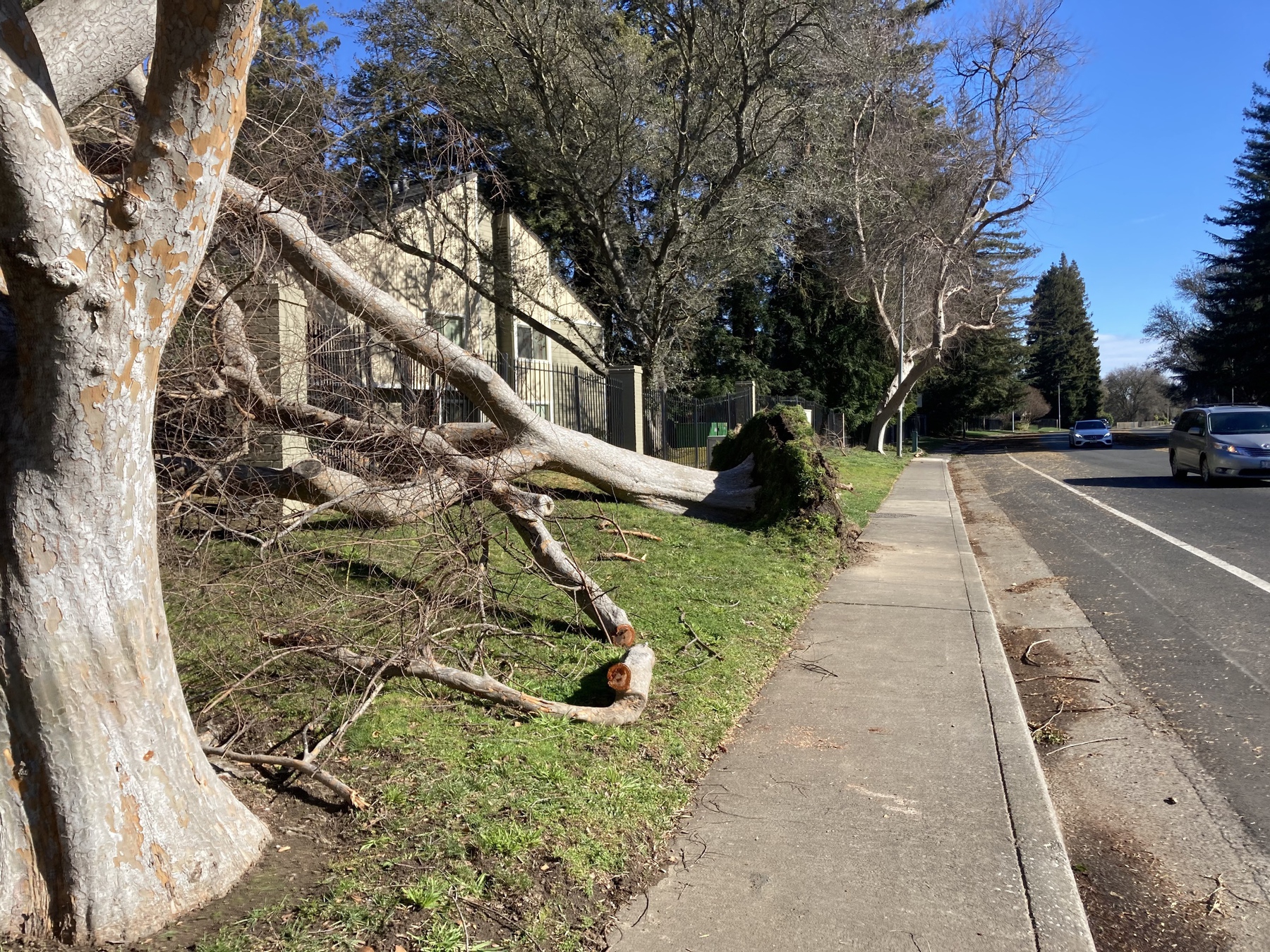
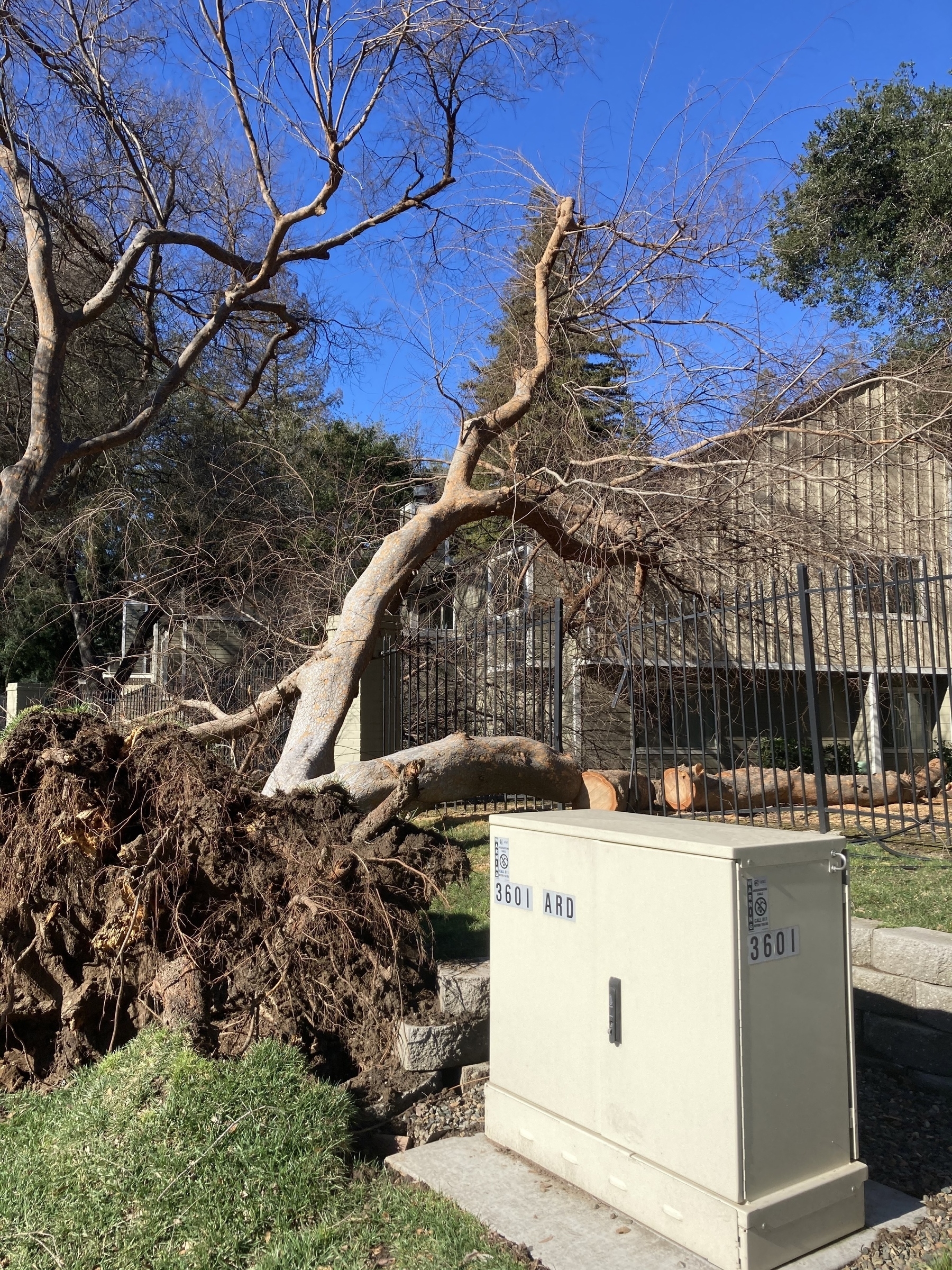
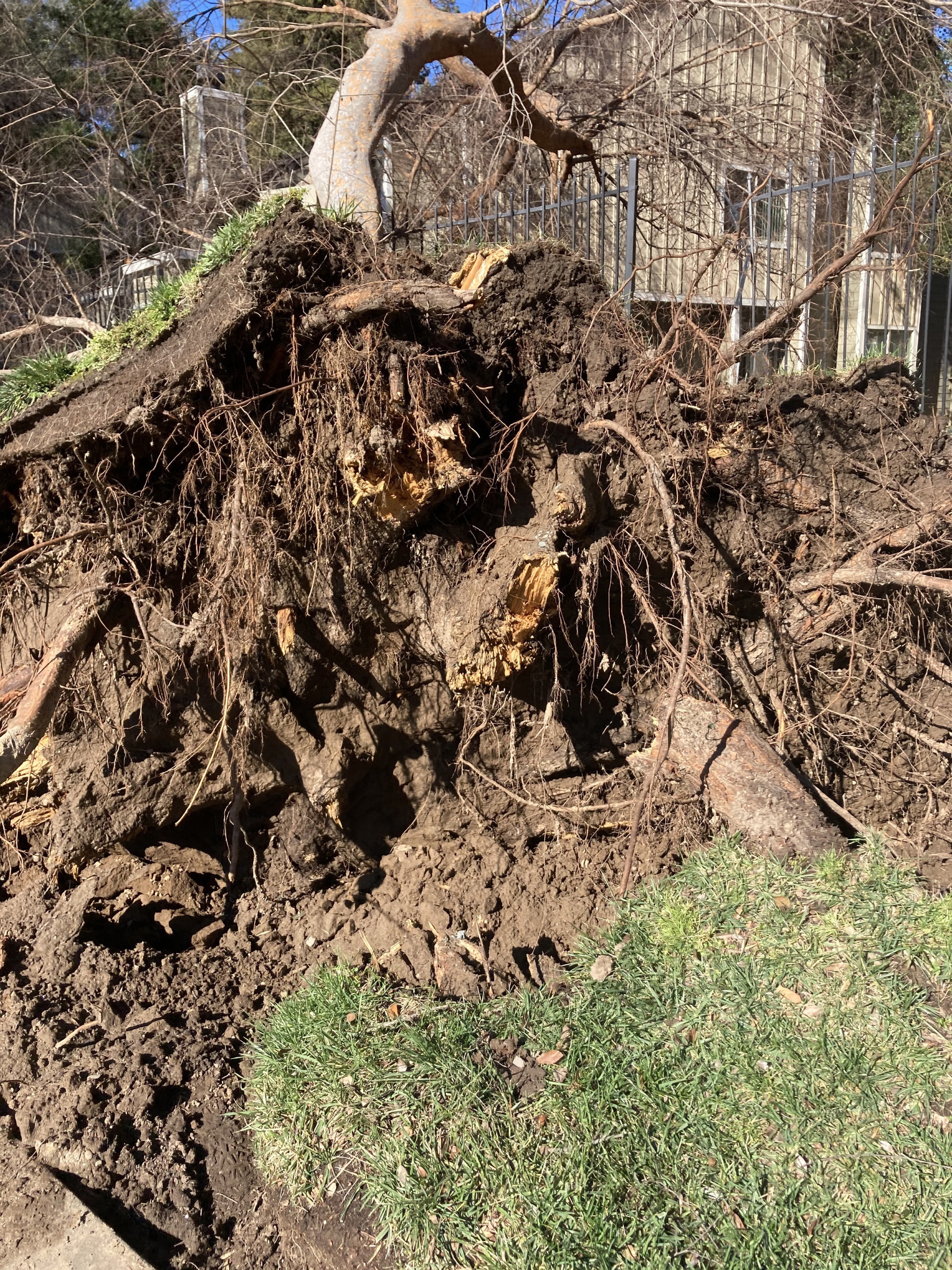
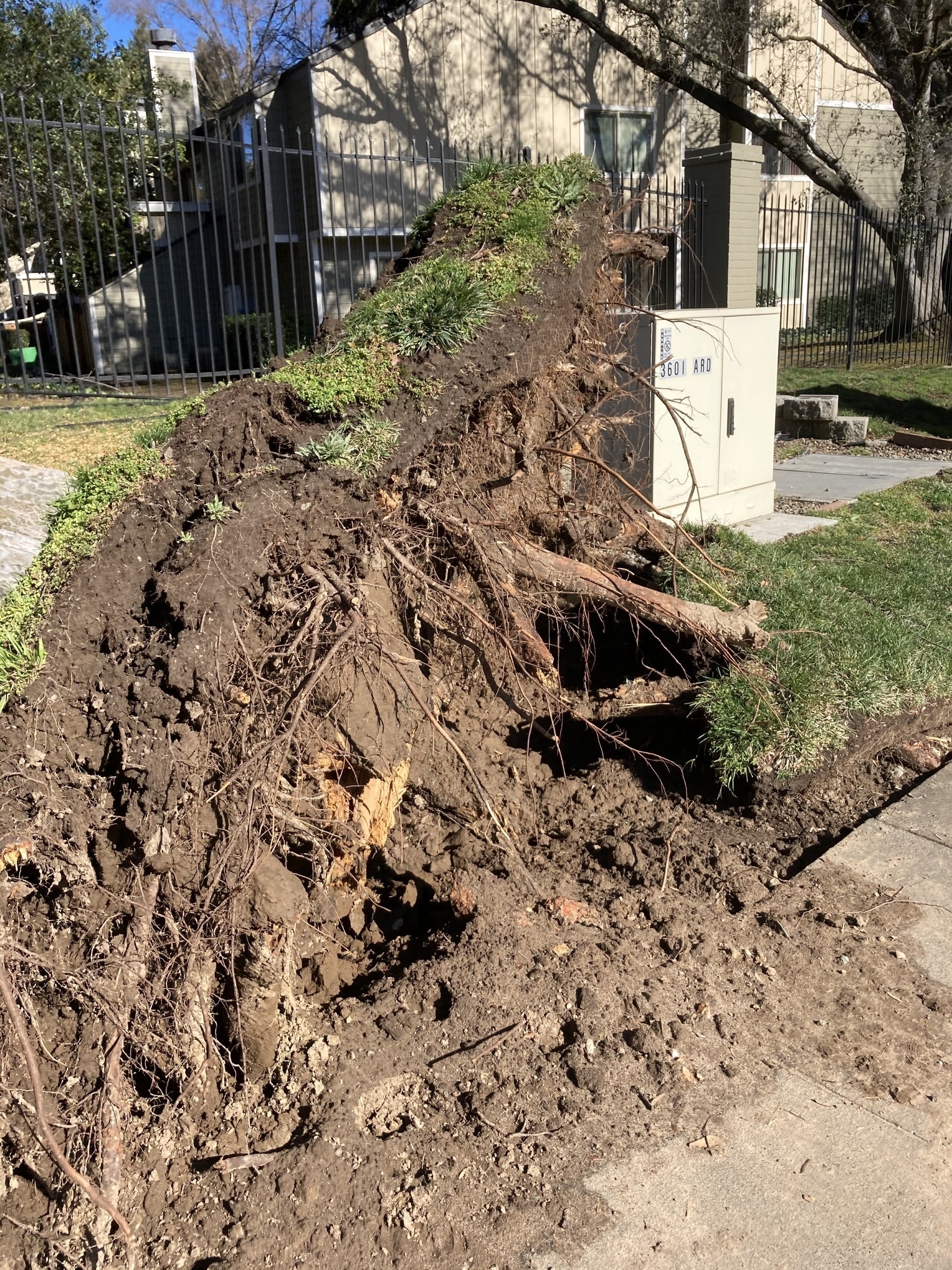
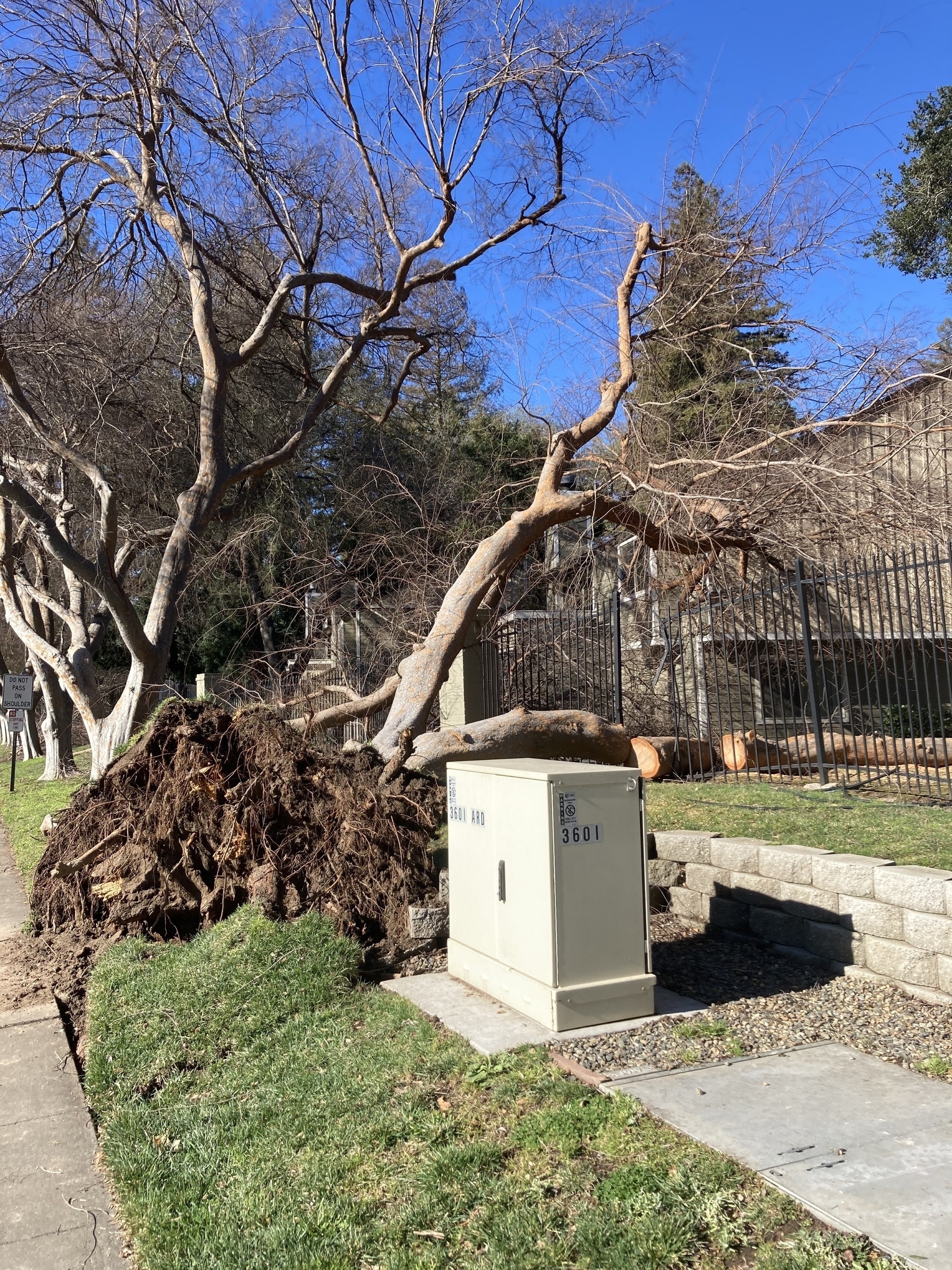
I went walking after the storm earlier this week.
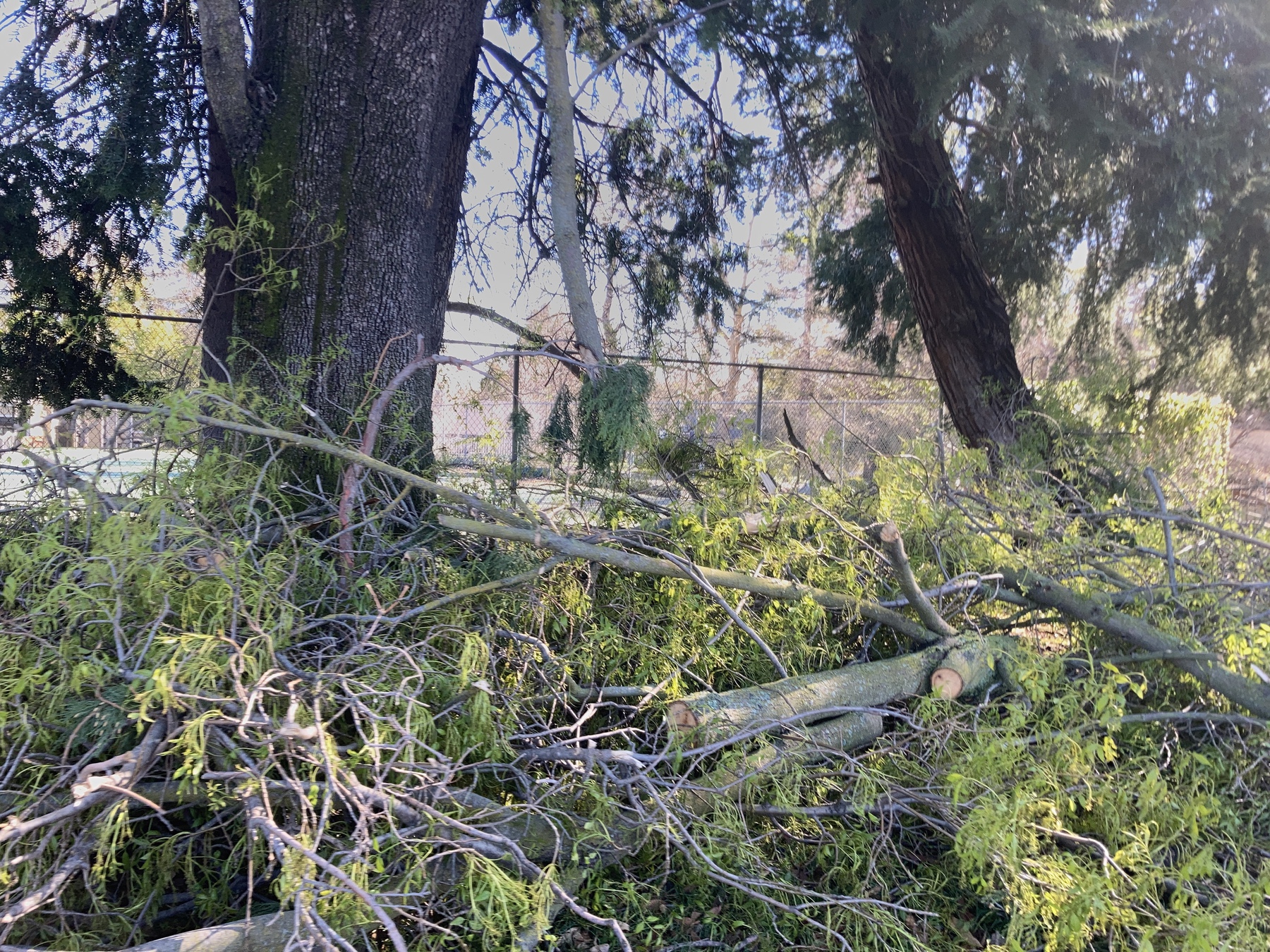
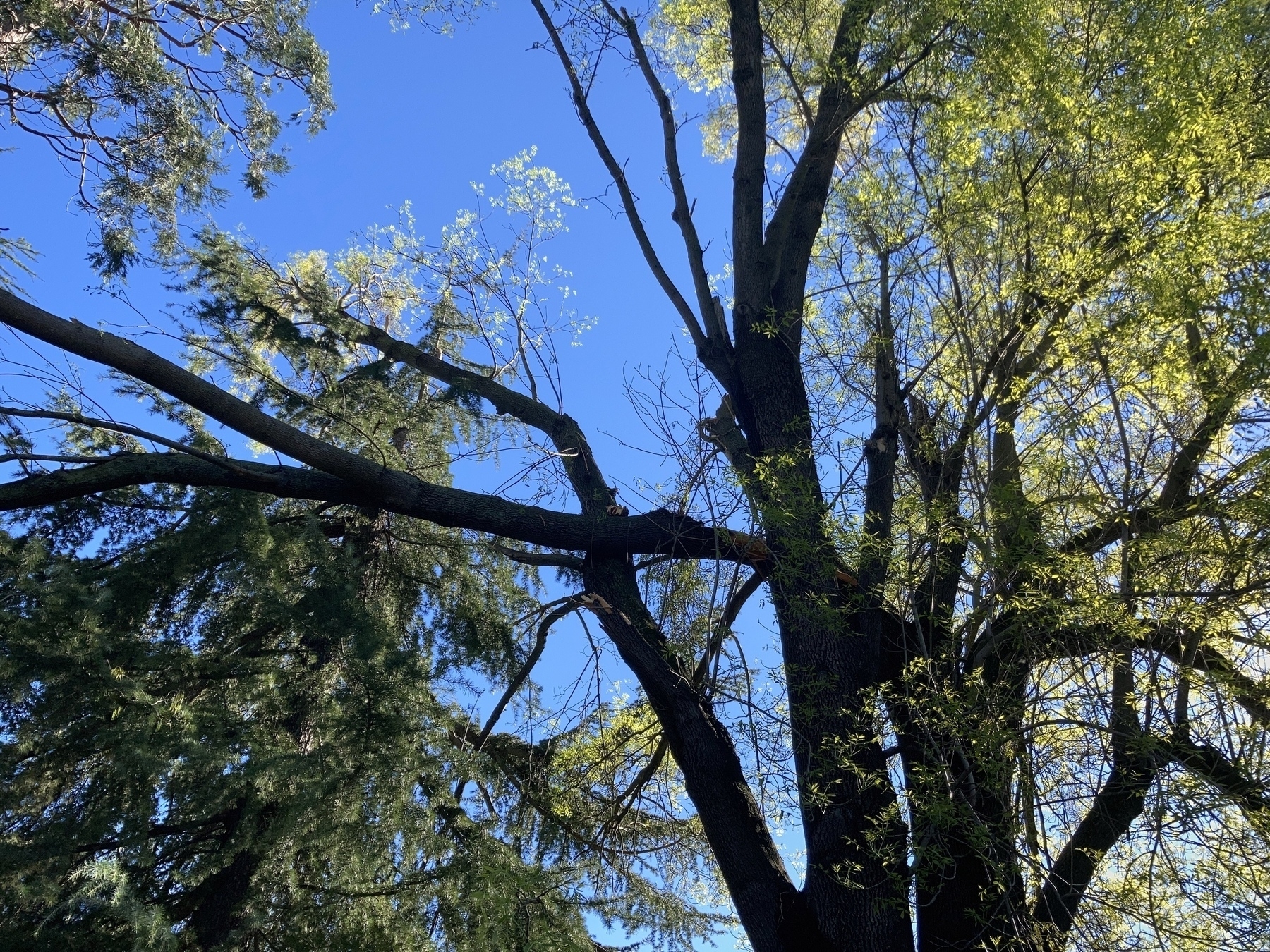
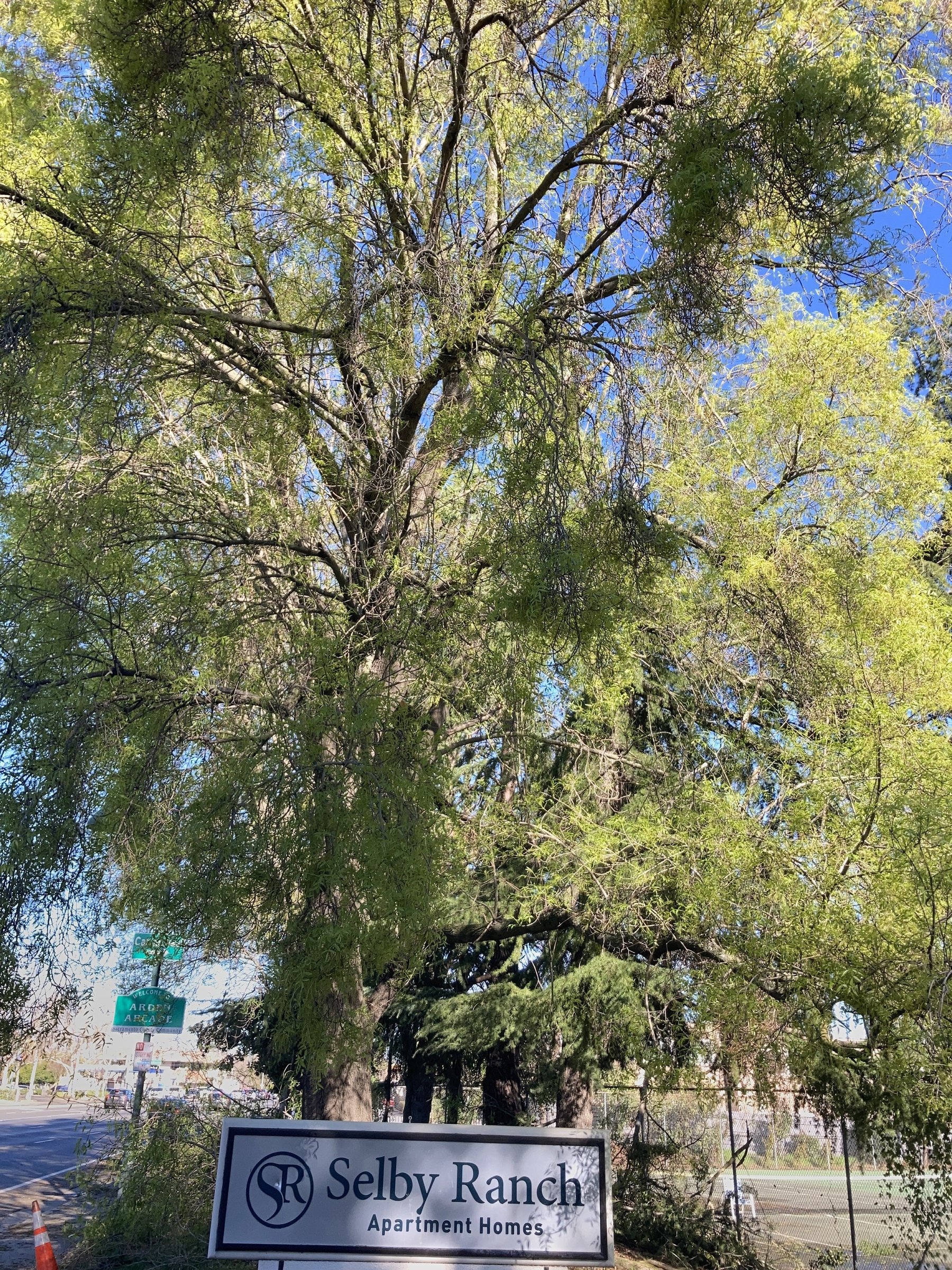
Lots of fallen trees every where.
Project 2, Part 2
almost sounds like a title for an action parody, but it’s the title for today’s work. I think the following really captures what I’m feeling:
Oprah Winfrey once said, “do what you have to do until you can do what you want to do.” By the end of this 100 days course I hope you’ll be able to do exactly what you want, but in the meantime stick with it – you’re learning key skills here!
To be honest, the first app does looks very basic in the middle of the project and I feel like I’m fighting my own ego in the fact that my application isn’t on the same level that you’d see in the app store. Then I have to take a step back.
I’m just learning!
Of course my app isn’t going to look that great!
If this is what I can do in a few weeks with only a couple hours every day, then the things I’ll be able to do after 100 days will be better. The things after a year will be better still.
It’s all part of growing and I that’s why I’m here.
In the end, I think I made a pretty good starter.

I’m fresh off the high of creating my first application and I SO want to charge ahead. I keep thinking “It’s a marathon, it’s a marathon, it’s a marathon.”
Today’s activity is pretty fun in that it allows me to experiment with colors. I spent some time just messing around with how to expand my application.
Today is challenge day!
I’ve been looking at the page for about 20 minutes. Then surfed the internet for another 20.
I’m procrastinating.
I’m intimidated because I’ve been playing with Swift for a while but this is the fist time that I said “Hey, I’m going to make an app”.
It’s always been accompanied by some tutorial instructions.
Well, let’s start!
The first thing I did was use Xcode to check in the initial tutorial code changes.

Xcode uses a lot of space for the check in.
Then I realized that it’s a completely new app so the checkin wasn’t really needed.
After that, I was using the preview in order to work on smaller segments of the program. Although, I think this part was kind of disconcerting because the preview would stop anytime that put a piece of code that had an error and wouldn’t start up again automatically.

I’m sure that I’ll remember the keyboard short soon.
I also got a chance to mess around with the refactoring tools in Xcode.

I reminds me of this quote from Phil Karlton, There are only two hard things in computer programming: cache invalidation and naming things.
In the end, I got the application running!

A couple pictures of how I had to plug in my devices at my local laundry in order to get my devices power.


Power was out for two days and the this was one of the first things that I did1! It felt great to get back into the swing of things. I also took the quiz that is associated with the application and scored 12 out of 12!
Tomorrow is Challenge day for this project, so I’m going to use the time that I have tonight to go over some of the previous days and to check out Paul Hudson’s video on 5 Steps to Better SwiftUI Views.
After playing Dead Cells for an hour. ↩︎
We’ve been without power since Tuesday. I’m using the power from a near by laundry room to charge my UPS. It’s like a scene from “The secret of NIMH”.
Power has been out since yesterday. So I guess my streak of programming every day has come to and end.